Photopea onboarding teardown: from new document to PNG preview
A hands-on Photopea walkthrough examines document setup, text-editing modes, and export, showing where a first useful image depends on choices the user understands.

In this article
Photopea allowed us to create a small image without signing in, but the route to that result began with choices about the document. In a desktop walkthrough, we entered the editor, created an 800 × 450 image, added a rectangle and a text label, and reached a PNG preview. The useful onboarding question is which of those early choices a visitor can answer confidently.
We observed the public Photopea site on October 5, 2026, in a new Chrome tab. Our task used only synthetic content: a white canvas, a black rectangle, and the label “First useful image.” This was one bounded walkthrough, not research with first-time participants or evidence of a conversion effect.
The first choice is how to begin
The public landing page offered a prominent Start using Photopea button. After entering, we saw New Project, Open From Computer, Templates, Generate, and Video options. Storage destinations also appeared in the sidebar. We chose New Project and did not connect storage or open any existing file.
Those are materially different starting conditions. Someone editing an existing image has already supplied its dimensions and content. Someone making a new graphic has to establish both. A single “editor opened” milestone hides that difference.
For your own product, identify the work a visitor brings with them before trying to shorten every path to the same number of steps. Importing an existing artifact and creating a new one may need separate definitions of progress.
New Project asks about the output before creation starts
The New Project panel displayed preset categories, example designs, and document controls together. Name, width, height, units, resolution, background, artboards, mode, bit depth, and color profile were visible. We supplied the name and 800 × 450 dimensions, retained a white background and the observed RGB, 8-bit, sRGB settings, then selected Create.
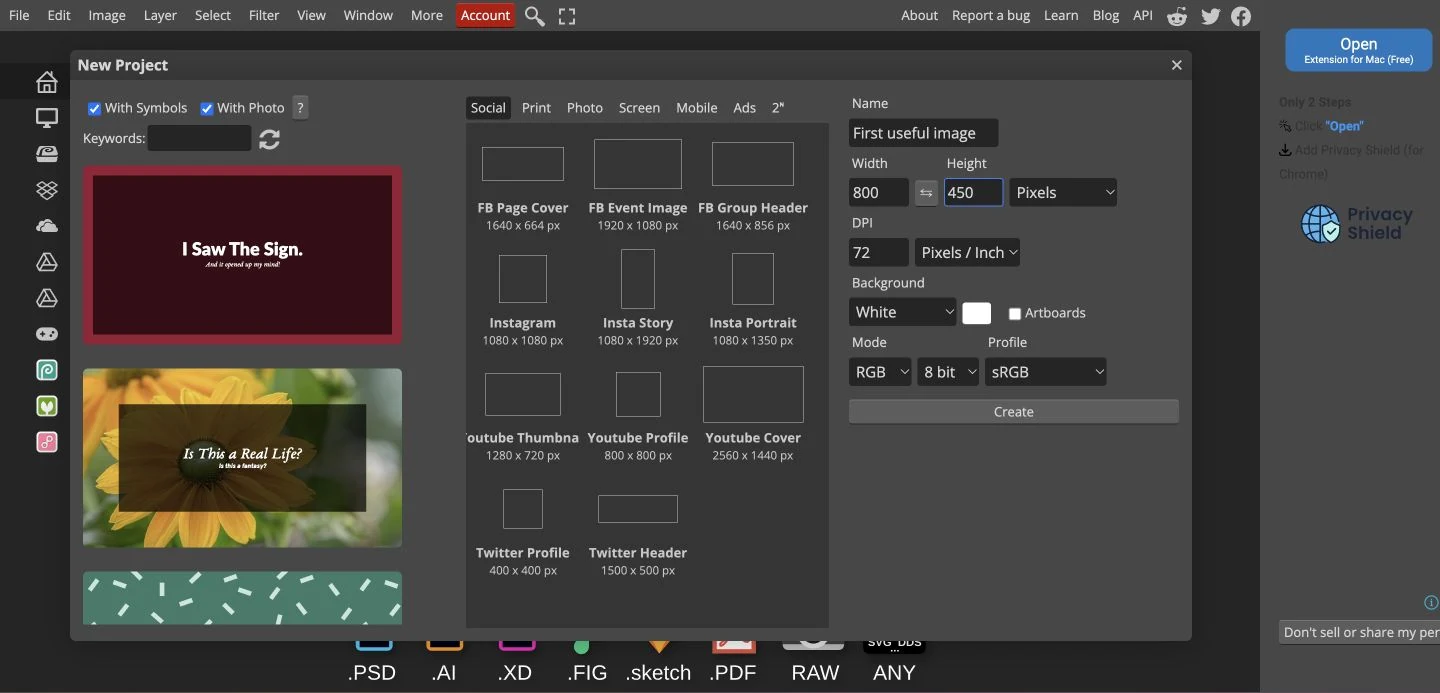
The panel is not evidence that Photopea asks every user too many questions. For an experienced designer, explicit dimensions and color controls may prevent expensive rework. For someone making a quick graphic, terms such as bit depth and profile may be decisions they cannot yet evaluate. The same interface can serve one person’s preparation and another person’s uncertainty.
Photopea already offers presets with visible dimensions alongside the manual controls. The useful question is whether a new visitor understands when to choose one and which settings can be left alone. A focused test could compare the current panel with a version that explains the selected preset’s intended output and groups bit depth and color profile under an expandable advanced section. Check whether people still produce a valid image for their task and whether experienced users can reach the settings they need. This walkthrough does not establish that either revision would improve completion.
Tool selection changes what the next action means
The created document appeared in an editing workspace with tools at the left and History and Layers at the right. Selecting Rectangle and dragging on the canvas produced a shape layer. Selecting Type, clicking above the rectangle, and entering the label produced a text layer. We changed the type size and used the Confirm control to finish editing the text.
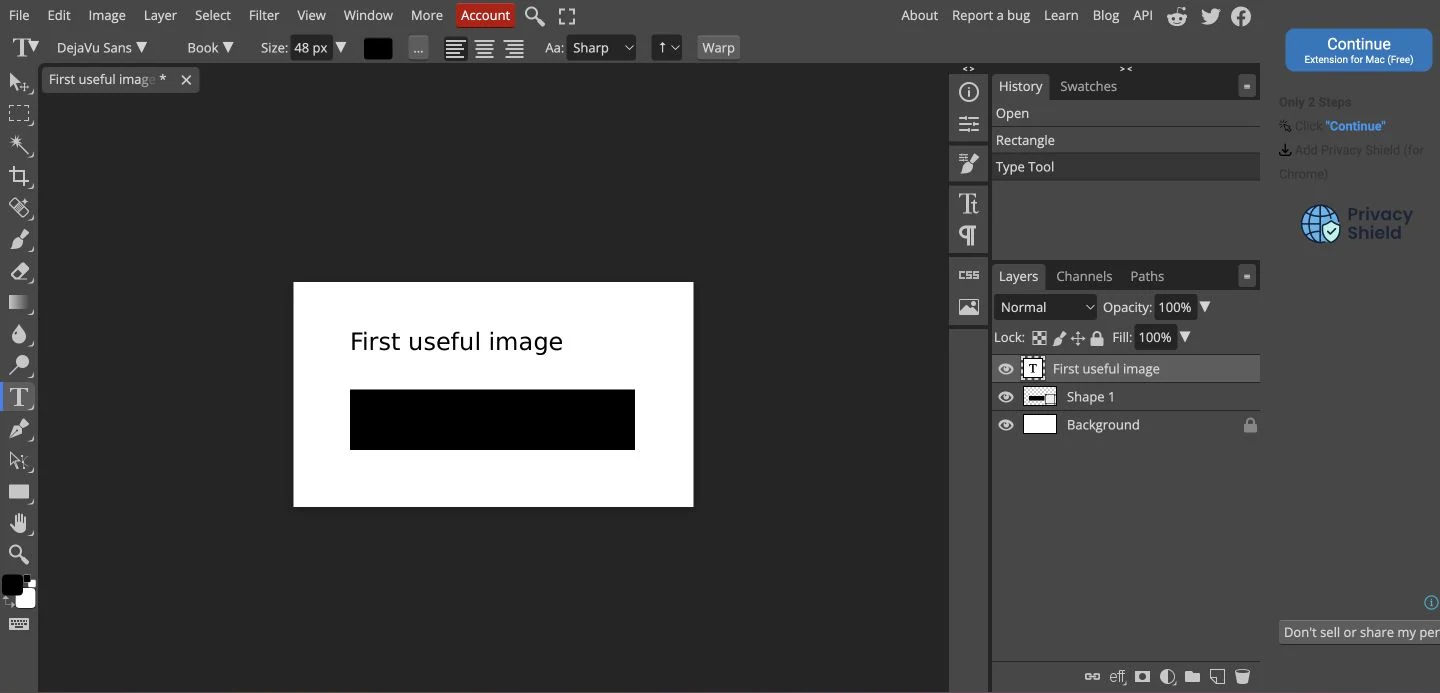
Photopea’s workspace guide explains that the top options change with the active tool. Its text guide describes a further boundary: text editing must be confirmed or canceled before moving on to another operation. Our task encountered both distinctions.
These boundaries deserve attention in onboarding because an apparently similar click can have a different effect depending on the active tool or editing mode. An image editor cannot remove every mode without removing useful capabilities. It can help people recognize the mode they are in, the object they are changing, and the action that completes the edit.
A focused observation session would watch for those misunderstandings. Does the person know why the next click starts a new text object? Can they tell whether a label has been committed? Can they select the element they intended to change? Those questions produce more actionable evidence than asking whether the interface feels complicated. Our first-time user research guide describes how to turn a specific task into an observation session without explaining away the moments of confusion.
Export is a separate decision from preserving editable work
We selected File, Export as, then PNG. The Save for web dialog displayed the actual image, its name, PNG format, and the expected 800 × 450 dimensions. It also showed output size and additional options. We could inspect the result before selecting Save.
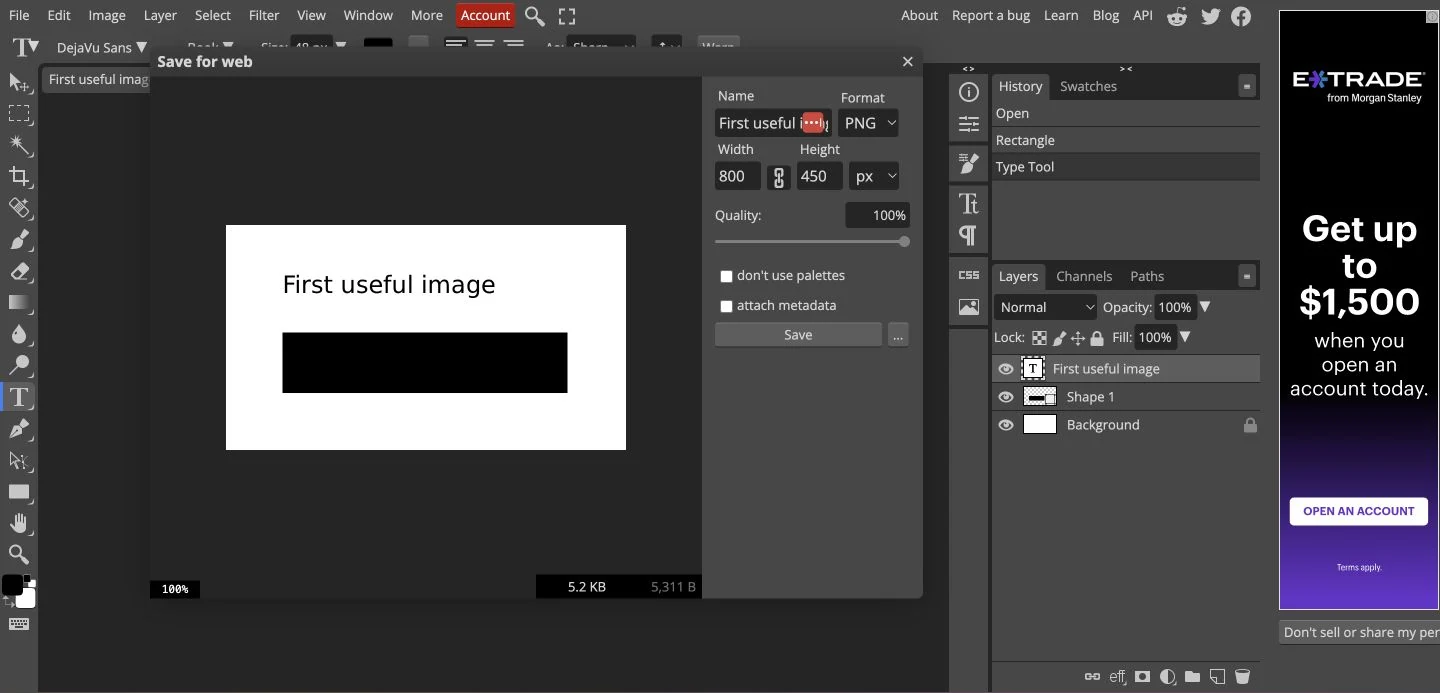
Photopea’s saving guide distinguishes saving a PSD to retain the document’s structure from exporting an image for distribution. That distinction matters for onboarding. A PNG that looks right can satisfy today’s sharing task while leaving tomorrow’s editing task unresolved.
After we selected Save, the export dialog closed and a prompt about supporting Photopea and removing ads appeared. We did not follow that offer. We observed the save action and subsequent screen, but did not independently reopen the downloaded output. The presence of the prompt should not be treated as proof of successful file delivery.
Define success around the visitor’s intended use
The illustrated product onboarding audit guide connects these observations to a broader review of starting state, useful result, and continuity. Keep the task you observed separate from a prediction about how other people will behave.
For this task, useful progress had several parts: a correctly sized document, the intended visible content, an export with the right dimensions, and an output the person could use elsewhere. If future editing mattered, preserving the editable document would add another requirement.
That is the lesson to take into an onboarding review. Early setup can be justified when it determines the quality of the result. Judge it by whether the user understands and benefits from the choice. Then keep following the task past the moment when the canvas first looks finished.
Sources
- Photopea public editor, observed October 5, 2026; screenshots from our own synthetic task.
- Photopea workspace guide, checked October 5, 2026, for tool and workspace behavior.
- Photopea text guide, checked October 5, 2026, for text creation and confirmation behavior.
- Photopea opening and saving guide, checked October 5, 2026, for PSD preservation and image export.
We did not test imports, linked storage, account creation, paid features, mobile interaction, return sessions, or real customer outcomes. Advertisements and commercial prompts can vary between visits.