The test button can change real data: designing a first automation run
Help new users distinguish a sample record, a live action test and an enabled workflow, with a worked CRM-to-email setup and a clear first-run receipt.

In this article
A button labeled “Test” can send an email or create a real record. New users need to understand that consequence before they press it, particularly when the surrounding workflow still looks like an unfinished configuration.
Zapier’s testing guide states that action tests perform the action in the connected app and may make live changes. Trigger records can also contain real data or representative sample values. The word “test” describes how the workflow is being exercised; it does not promise an isolated sandbox.
A good first-run experience therefore explains the input, destination and intended side effect together. It also keeps testing one action separate from enabling the workflow for future events.
Show what this click will change
Before a write action runs, summarize the consequence in ordinary language. “Send this sample email to the selected test inbox” is more informative than “Test step.” “Create a contact in the Demo CRM account” names both the operation and the account where it will happen.
The summary must reflect the current configuration. If the recipient or connected account changes, update the description before the action can be repeated. A warning written once at the start of setup can become misleading after several edits.
Separate a preview from an execution. If a product can show the assembled message without sending it, call that preview. If it makes a real request to the destination app, say so. If the platform provides a true sandbox, name the environment and explain the boundaries of that isolation.
The useful distinction is what the click does now. A test label, a draft status or a pastel background cannot establish that on its own.
Follow one fictional CRM-to-email workflow
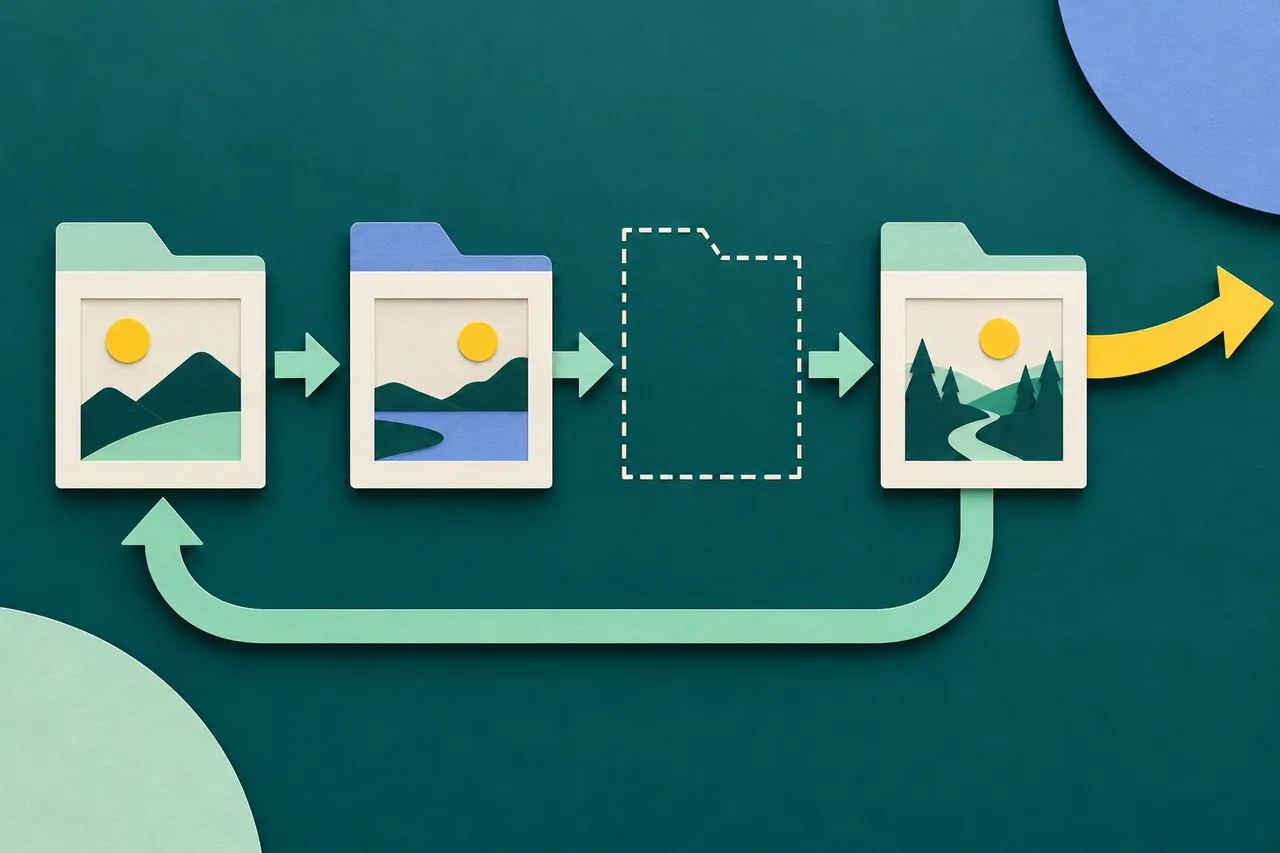
Consider an illustrative workflow for a small sales team: when a new contact is marked ready for follow-up, prepare a welcome message and send it through a connected email account. This is a design example. No CRM record is changed and no message is sent here.
The first screen chooses a clearly marked sample contact. It displays the fields the workflow will use: the contact’s name, company and email destination. The user can inspect those values before they are mapped into the message.
Next, the product shows the assembled subject and body. The original contact email remains visible as source data, while a separate, explicit testing control directs this particular test to an inbox owned by the tester. That separation matters. Replacing a field silently can hide a mapping mistake; using a real prospect’s address can create an unwanted first impression.
Before the send, the receipt preview says which connected email account will send the message and which inbox will receive it. It identifies this as a real message sent for testing. A cancel path leaves the configured draft intact.
Afterward, the test result reports the action the destination accepted and provides any available message identifier. The user can inspect their test inbox to verify the subject, body and formatting. If delivery confirmation is unavailable, the product should not imply that a successful API response proves the message reached the inbox.
That sequence gives the user several useful questions to answer: Did the right source record feed the action? Did the mapping produce the intended content? Did the destination account receive the expected request? Was the resulting message recognizable?
Keep the sample’s origin visible
A realistic-looking contact can be fabricated by the integration, retrieved from the connected account or edited by the user. Those origins have different implications for the next action.
Mark representative data as sample data. If it came from a real app record, make that clear and provide a link or identifier where available. If the person edits the sample locally, explain whether the edit changes the original app record or only the test input.
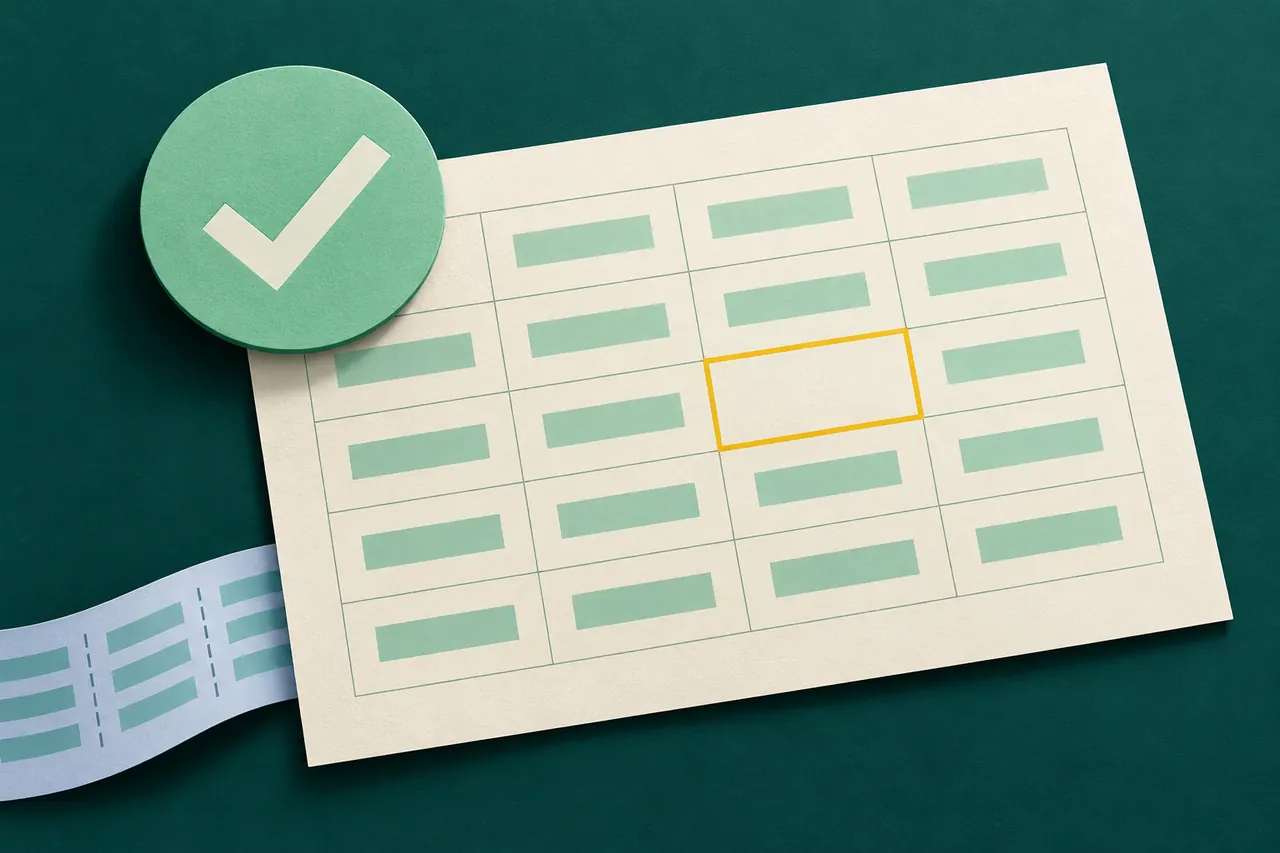
Zapier’s guide describes selecting and inspecting a trigger record before using its fields in later steps. The broader onboarding opportunity is to keep that selected record identifiable as the user moves through the workflow. Otherwise, an email preview may look plausible even though it belongs to a different contact from the one the user intended.
In the fictional example, carry a compact “Sample contact for this test” panel alongside the mapping and send steps. Keep it specific enough to catch a mistaken record without exposing unnecessary customer information throughout the interface.
A passed step is not an enabled workflow
Testing answers whether the selected configuration can perform a particular action with the chosen input. Enabling answers whether future qualifying events should run the workflow. The user needs to make the second decision deliberately.
Zapier’s editor documentation describes separate controls and information for editing, publishing, version history and turning a Zap on or off. Those distinctions are useful because an edited draft and the configuration handling future events may differ.
For the illustrative CRM workflow, the final review should show the real trigger condition, the account it monitors, the recipient mapping that will apply to future contacts and the action being enabled. Remove any ambiguity about whether the temporary test-inbox override continues after activation.
If the product supports a test override, make restoring the intended live mapping a visible step with its own preview. Do not automatically substitute a real recipient immediately after the first test succeeds.
A final action labeled “Turn on for new ready contacts” communicates more than “Finish.” The confirmation should also explain how to pause the workflow and where to inspect the first qualifying run.
Plan for a partial first run
A workflow can create a CRM record successfully and then fail to send the email. The interface should preserve that partial outcome. Retrying the entire sequence without understanding what already happened could create an additional record or repeat an earlier action.
Give each step its own result and point the user to the platform’s documented replay behavior. If the product can safely resume only the failed step, explain that option. If it cannot, show the earlier side effects before offering a full rerun.
The first-run receipt should remain accessible after the success screen closes. A user who finds an unexpected message later needs to connect it to the workflow version and input that produced it. A history item with the originating record, destination and outcome is more useful than a generic completion badge.
For an internal review, exercise a representative record, a real record in a controlled account and a deliberately failed later step. These are proposed acceptance scenarios, not observed test results. Ask the reviewer to predict what each action will change before running it.
The experience is understandable when their prediction matches the actual side effect and they can identify what is now enabled. That is a stronger first-use result than making every configuration card turn green.